
This is the ultimate ways to cheat the long waiting of each time opening a website, this is How To Open Mobile Version of A Website In Firefox.
There are several times when you may want to test out a mobile website, or use mobile websites to save bandwidth, since they load pretty fast and do not use heavy images, which in turn can use up more bandwidth from your ISP.
However many mobile websites redirect users back to a regular website, when you visit it using browsers such as Firefox, Google Chrome, Opera or Internet Explorer.
If you are looking to test a website or save some bandwidth while surfing your favorite social networking site, a simple Firefox add-on could help you emulate a mobile web browser and let you surf the website, like you would do in a actual mobile web browser.
 The trick involves changing the user agent string, that is sent out to website, to make them think, that the request is coming from a actual mobile web browser, you can practically emulate default system browsers from any phone.
Steps To Emulate A Mobile Web Browser In Firefox
 Step 1: Download the User Agent Switcher Add-on for Firefox
Step 2: Restart Firefox for the add-on change to take place.
Step 3: To emulate a mobile web browser, you will need to change the user agent string that is sent out, we recommend finding a appropriate user agent string from this huge list of mobile browser strings.
Step 4: Once you have identified your favorite mobile browser string, go to Tools > User Agent Switcher > Options > Options in Firefox.
 Step 5: In the options window for user agent switcher, select User Agents and click on the add button.
 Step 6: In the new Add User Agent dialog box, give a appropriate name to the user agent and copy the user agent string you got from step 3 into the second text box, for example we are creating a user agent string for iPhone, so we named it as iPhone emulator and added the default user agent for iPhone in the User Agent text box.

You can leave the other options provided as blank, once you have entered the details, click on the Ok button.
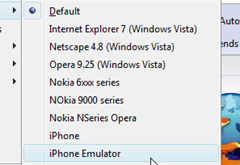
Step 7: To start a new browsing session using a emulated web browser, go to Tools > User Agent Switcher and select the appropriate mobile web browser you want to emulate, to switch back to normal browsing, just select the default option from the same menu.
 This tip will help you to browse mobile web sites or test them out from your PC, however this trick cannot be used to test out mobile applications, that require you to install something to the mobile phone, however you can still use this How To Open Mobile Version of A Website In Firefox trick and save on bandwidth too, ciao ^_^
More about → How To Open Mobile Version of A Website In Firefox
There are several times when you may want to test out a mobile website, or use mobile websites to save bandwidth, since they load pretty fast and do not use heavy images, which in turn can use up more bandwidth from your ISP.
However many mobile websites redirect users back to a regular website, when you visit it using browsers such as Firefox, Google Chrome, Opera or Internet Explorer.
If you are looking to test a website or save some bandwidth while surfing your favorite social networking site, a simple Firefox add-on could help you emulate a mobile web browser and let you surf the website, like you would do in a actual mobile web browser.
Steps To Emulate A Mobile Web Browser In Firefox
 Step 1: Download the User Agent Switcher Add-on for Firefox
Step 2: Restart Firefox for the add-on change to take place.
Step 3: To emulate a mobile web browser, you will need to change the user agent string that is sent out, we recommend finding a appropriate user agent string from this huge list of mobile browser strings.
Step 4: Once you have identified your favorite mobile browser string, go to Tools > User Agent Switcher > Options > Options in Firefox.


You can leave the other options provided as blank, once you have entered the details, click on the Ok button.
Step 7: To start a new browsing session using a emulated web browser, go to Tools > User Agent Switcher and select the appropriate mobile web browser you want to emulate, to switch back to normal browsing, just select the default option from the same menu.


