Showing posts with label windows 7. Show all posts

How To Animate Windows 7 Start Button

Posted by marco

How to Animate the Windows 7 Start Menu Button?


Here we wanna try and give you the correct information of how to do exactly that, every multimedia savvy's dream, watching your start button animate all the time, it's pretty simple actually, all you need is this simple tool called Windows 7 Start Button Animator, which you can download here.


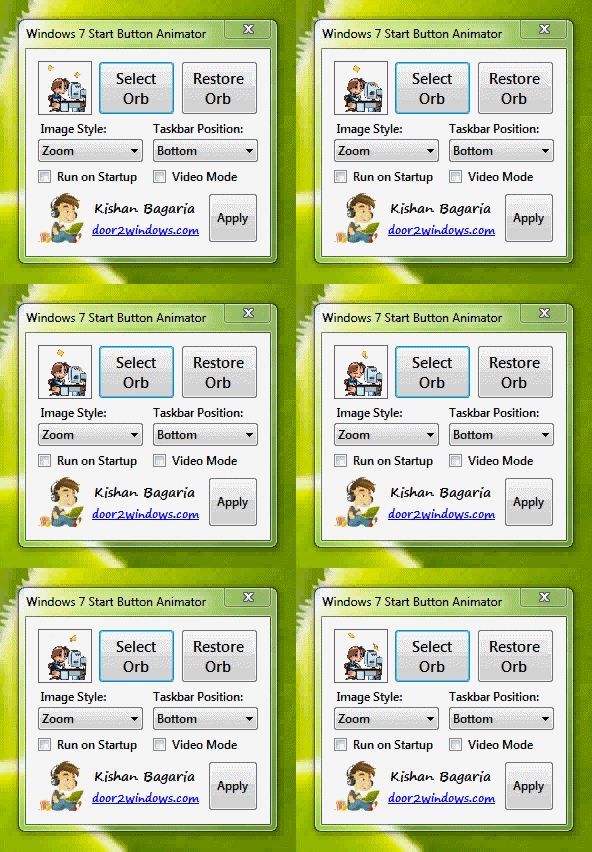
Windows 7 Start Button Animator is a free portable tool that allows you to set an animated start button in Windows 7. You can set any animated gif image as your start button.


How To Animate Windows 7 Start Button


How to use:


  • Run the tool. You will now see an animated orb instead of the old unanimated orb.
How To Animate Windows 7 Start Button
  • Click on the orb icon in the system tray.
How To Animate Windows 7 Start Button
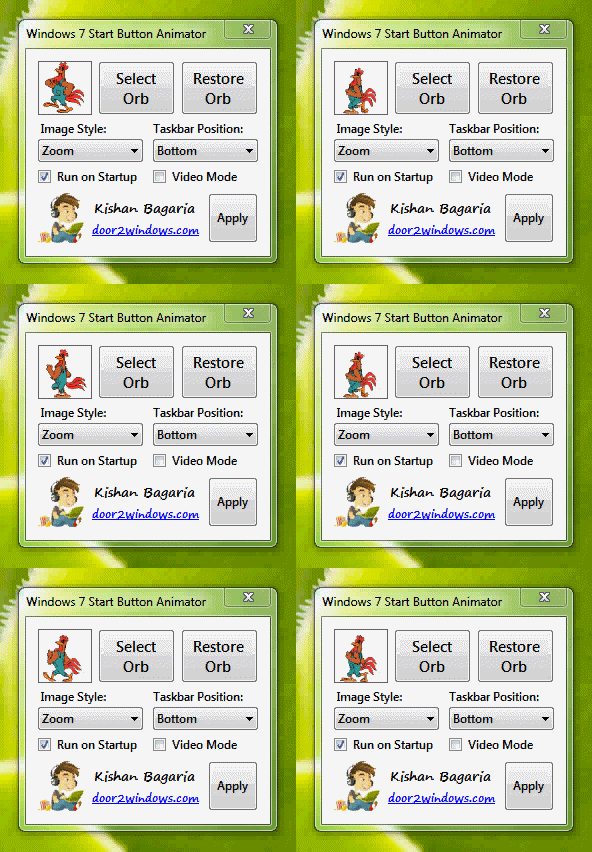
  • Click on Select Orb and choose your desired GIF animation.
  • Change Image Style to the style that best matches to your image.
  • Change Taskbar Position to the position of your taskbar.
  • If you want the tool to run everytime Windows starts up then select Run on Startup.
How To Animate Windows 7 Start Button
  • Click Apply.


Troubleshooting possible problems:


Problem.1
The start button appears on top of the video I am watching.
Solution: Select Video Mode in the Settings.

Problem.2
When I close the tool, the default unanimated orb is not there.
Solution: Click on Restore Orb in the Settings.


How To Animate Windows 7 Start ButtonProblem.3
When I click on Restore Orb, the default unanimated orb is still not there.
Solution: 
Do the following:
- Make sure that the program is closed.- Take ownership of C:\Windows\explorer.exe (Change C to your system drive)- Run the program as admin and select Restore Orb again.
That is how to animate windows 7 start button, just like what i said before all you need is this simple free tool and your start button is good to go ^_^
More aboutHow To Animate Windows 7 Start Button

How To Make A Windows 7 Repair CD

Posted by marco

This is the tutorial you've been waiting for, How to Make A Windows 7 Repair CD
Every new Microsoft operating system release (including Windows 7), they claim that the operating system is more stable than its predecessor. However, you will never know when a stable system will experience problems. It would be better if you can anticipate in order to minimize the impact by the time Windows 7 has a problem.


One solution preparation you can do to anticipate such damages is to make a repair CD Windows 7 that can be used to boot the operating system when experiencing problems. 


How To Make A Windows 7 Repair CD
Windows 7 has a feature that can be used to create a CD repair with these easy steps.

  • Click Start, type system repair disc and then click Create a System Repair Disc.

How To Make A Windows 7 Repair CD

  • A window will pops out "Create a System Repair Disc". Select the disc media to be used.

How To Make A Windows 7 Repair CD

  • Insert a blank CDs into the DVD / CD RW and proceed to click the Create button disc.
  • When finished, remove the piece CD that you created from DVD / CD RW

Now you have CDs that can be used as a repair disc Windows 7 on your computer.
But how can u use the repair disc that you've just made?

  • Boot up your computer or notebook using the CDs that you created. Select the Windows Setup [EMS Enabled] to enter the menu system repair.

How To Make A Windows 7 Repair CD

  • After the boot process is complete, you can access the System Recovery Options tool and restore the System Image file that you created earlier. (Read our previous article on How to Create a System Image in Windows 7).

How To Make A Windows 7 Repair CD

  • Now you can choose the type of recovery to be run to restore the operating system Windows 7 on a laptop or PC in accordance with the conditions you face system damage. If you want to use a system image that you created, click System Image Recovery and follow the steps beriutnya ssuai with the instructions provided.

How To Make A Windows 7 Repair CD
Although never wanted, you'll never know when windows 7 operating system experiencing problems. A wise move if you take the time to make a repair CD that will be useful when computer is in trouble. So this tips on how to make a windows 7 repair CD could be useful after all, right?
More aboutHow To Make A Windows 7 Repair CD

How To Create A System Image In Windows 7

Posted by marco


Today we take a look on How to Create a System Image in Windows 7, because believe it or not, although most of us don't think this is necessary, but we never know what's worst to come in our way, we just gotta be prepared for the worst.
The presence of many new features in Windows 7 make us the easier it is to maximize the performance of it. One new feature is presented that does not exist in previous versions of windows is the ability to create a backup image file without having to use third-party utilities such as Symantec Ghost or true image.
How To Create A System Image In Windows 7
The best time to make the image file is when you just do the install windows and a few standard applications such as office, winamp and some other standard applications. Image file you created is a backup of all system, application or data file that is in a hard disk drive as a whole. Simply put, the image file is a mirror of your data on your hard drive.

Now, we proceed to create a system image file in Windows 7
  • Click Start, select Getting Started and click Back up your files.
How To Create A System Image In Windows 7

  • Click Create a system image on the exit window.
How To Create A System Image In Windows 7
  • Choose where you want to save the image file. You can select the hard disk drive, then burn it onto a DVD or put the pieces in a shared network drive (if any).
How To Create A System Image In Windows 7
  • On the screen, you will see the confirmation that indicates how large the image file to be created by the system. Click the Start Backup button to begin making the system image.
How To Create A System Image In Windows 7
  • After that, you'll get progress bar as the system is making the image file from your hard drive.
How To Create A System Image In Windows 7
  • Once the process is complete, you are given a choice whether or not to create a CD repair disc. This CD will be useful as a support tool when your system error and want to do a restore using the image file you created. Select Yes to create a CD repair disc.
How To Create A System Image In Windows 7
  • Insert a blank CD and check the drive before you start creating the CD repair disc.
How To Create A System Image In Windows 7
  • Click Create to start creating a CD disc repair disk. Wait a while until the process is complete.
How To Create A System Image In Windows 7


Now, you have a file system image backup and a disk repair CD that can be used when your computer is having trouble. The process of image-making system will create a new folder named "WindowsImageBackup" where you choose file system image storage location.


How To Create A System Image In Windows 7

Use the CD repair disc along with the image file that you just created when you are having trouble with your windows 7 operating system. Thanks for reading this tips of how to create a system image in windows 7, hopefully it will be useful one day. Good luck!
More aboutHow To Create A System Image In Windows 7

Things To Do After Fresh Installing Windows 7

Posted by marco

things to do after fresh installing windows 6
Windows 7 is the latest installment of the windows franchise and has become the best one so far, but there's always room for tweaks folks... and i'm here to present to you some of it..

1. Install Windows 7 MP3 Fix Update. This is a very important update as Windows 7 might corrupt your MP3 files. You can get the updates from the official microsoft page below
|Download Update| for 32-bit version or
|Download Update| for 64-bit version.


More aboutThings To Do After Fresh Installing Windows 7

New Windows 7 themes within windows itself (hidden)

Posted by marco

Windows 7 offers a good assortment of themes to customize the feel as well as the look of your computer. Windows 7 features particular themes which are based on the location and the language you select while you install the Windows 7. You can look for the location-specific theme in the Personalize menu. You just have to right-click at any place upon your computer desktop. You will be able to get the couple of themes according to your location.
windows 7 themes
Other than the location specific themes which you get by default, you can access hidden themes in Windows 7 which are offered to other regions. So the default themes which you get according to your region are not the only themes you can use. It is possible to access hidden themes in Windows 7 very easily in your system. This is what you have to do:
More aboutNew Windows 7 themes within windows itself (hidden)
Related Posts Plugin for WordPress, Blogger...