Showing posts with label imaging. Show all posts

How To Animate Windows 7 Start Button

Posted by marco

How to Animate the Windows 7 Start Menu Button?


Here we wanna try and give you the correct information of how to do exactly that, every multimedia savvy's dream, watching your start button animate all the time, it's pretty simple actually, all you need is this simple tool called Windows 7 Start Button Animator, which you can download here.


Windows 7 Start Button Animator is a free portable tool that allows you to set an animated start button in Windows 7. You can set any animated gif image as your start button.


How To Animate Windows 7 Start Button


How to use:


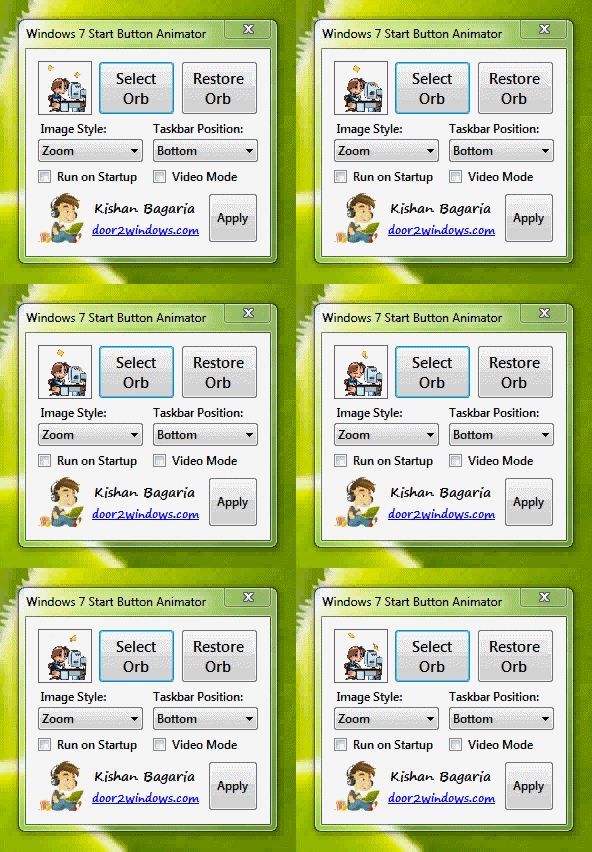
  • Run the tool. You will now see an animated orb instead of the old unanimated orb.
How To Animate Windows 7 Start Button
  • Click on the orb icon in the system tray.
How To Animate Windows 7 Start Button
  • Click on Select Orb and choose your desired GIF animation.
  • Change Image Style to the style that best matches to your image.
  • Change Taskbar Position to the position of your taskbar.
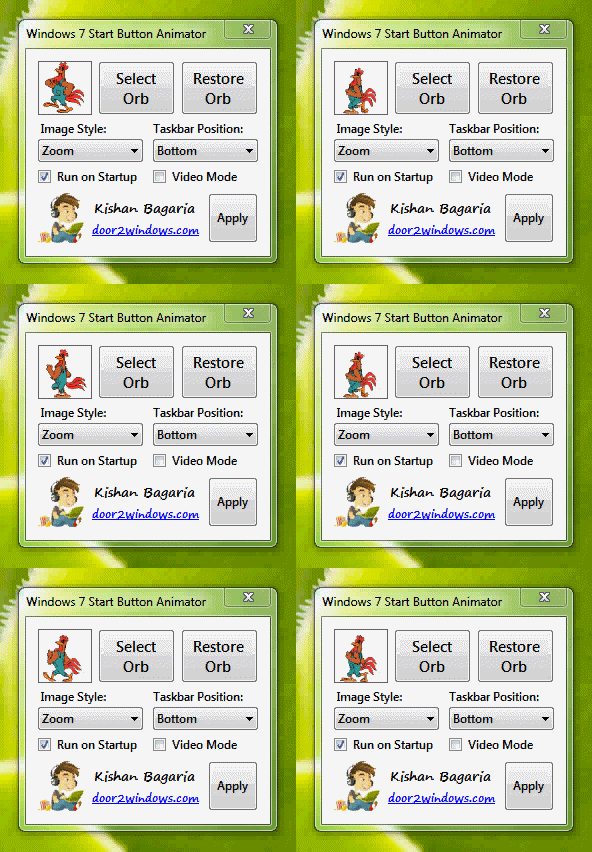
  • If you want the tool to run everytime Windows starts up then select Run on Startup.
How To Animate Windows 7 Start Button
  • Click Apply.


Troubleshooting possible problems:


Problem.1
The start button appears on top of the video I am watching.
Solution: Select Video Mode in the Settings.

Problem.2
When I close the tool, the default unanimated orb is not there.
Solution: Click on Restore Orb in the Settings.


How To Animate Windows 7 Start ButtonProblem.3
When I click on Restore Orb, the default unanimated orb is still not there.
Solution: 
Do the following:
- Make sure that the program is closed.- Take ownership of C:\Windows\explorer.exe (Change C to your system drive)- Run the program as admin and select Restore Orb again.
That is how to animate windows 7 start button, just like what i said before all you need is this simple free tool and your start button is good to go ^_^
More aboutHow To Animate Windows 7 Start Button

How To Create Animated GIF Image Easy From Webcam With PsykoGif

Posted by marco

This is one of the ways to create a nice animated GIF image on your own, coming up the How to create animated GIF image easy from webcam with PsykoGif.


Did you find it difficult to make an animated avatar to decorate your own personal profile page? You should not have taken the trouble to look for an application tool that is able to create your own animated avatars now, as this article right here will now present to you a free utility application that is able to represent these capabilities simply by optimizing the webcam you have and then present a fast and easy.
Create Animated GIF Image From Webcam With PsykoGif
Then the question, what is this free utility application? the answer is Psykogif. And for those who are not familiar with and already passionate about trying to use this Psykogif application, then before it could not hurt if you first read the discussion related to the application here.


First of all there is to know, Psykogif is a web-based applications free utility that can help you in the creation animated gif webcam simply by optimizing the device you have and also allows you to share along with your friends or relatives. Animations you create with this Psykogif, later you can make as an animated avatar on your personal profile page.
Create Animated GIF Image From Webcam With PsykoGif
By using a flash player, Psykogif application allows you to take pictures through the webcam and then combine them into an animated gif display. Once completed, your creations were animated gif can be stored either online or offline on your system.
Create Animated GIF Image From Webcam With PsykoGif
Online application that has a minimalist interface (simple) is capable of creation animated gif you to easily and quickly. To use it too, you dont have to download the sign-up or anything for that matter.
Create Animated GIF Image From Webcam With PsykoGif
Here are some of the features of the Psykogif:

  • Since Psykogif is an online web application, it does not require any download process in this case.
  • In her own use, this application requires the presence of the webcam and microphone you have.
  • Each will represent the image in an image.
  • 5 images can be taken to further incorporated into an animated gif.
  • If there is an ugly picture shots or less good according to you, then you are allowed to delete it and start again from scratch again.
  • There are shots that can be modified image itself as rotating the image and others.
  • Once completed, you can save the file either online or offline as you see fit.
  • You can also see the Hall Of Fame to see the existing collection of animated gif online

Ways to use Psykogif:

  • Open your browser, and visit the site www.Psykogif.com. And after all the index pages open fully, without any sign up or login, you are allowed to click on the "capture" for your first shot to gif.
  • You can click the "play" on the right of the "capture" and move the next shooting.
  • With every picture you take with a new position then allows you to create animated gif with the "play" to act as a medium to see the animated gif.
  • Once is enough and you want to end the segment, you can save your shots which have been incorporated into animated gif either Online or Offline via options on the right side of your screen.

Well, pretty easy to use, right! And for those of you who are interested in trying this app, can directly go to this site www.psykogif.com. Happy creating!


Hope this entry of how to create animated GIF image easy from webcam with psykogif will help out everyone who has been trying hard to make one.
More aboutHow To Create Animated GIF Image Easy From Webcam With PsykoGif
Related Posts Plugin for WordPress, Blogger...